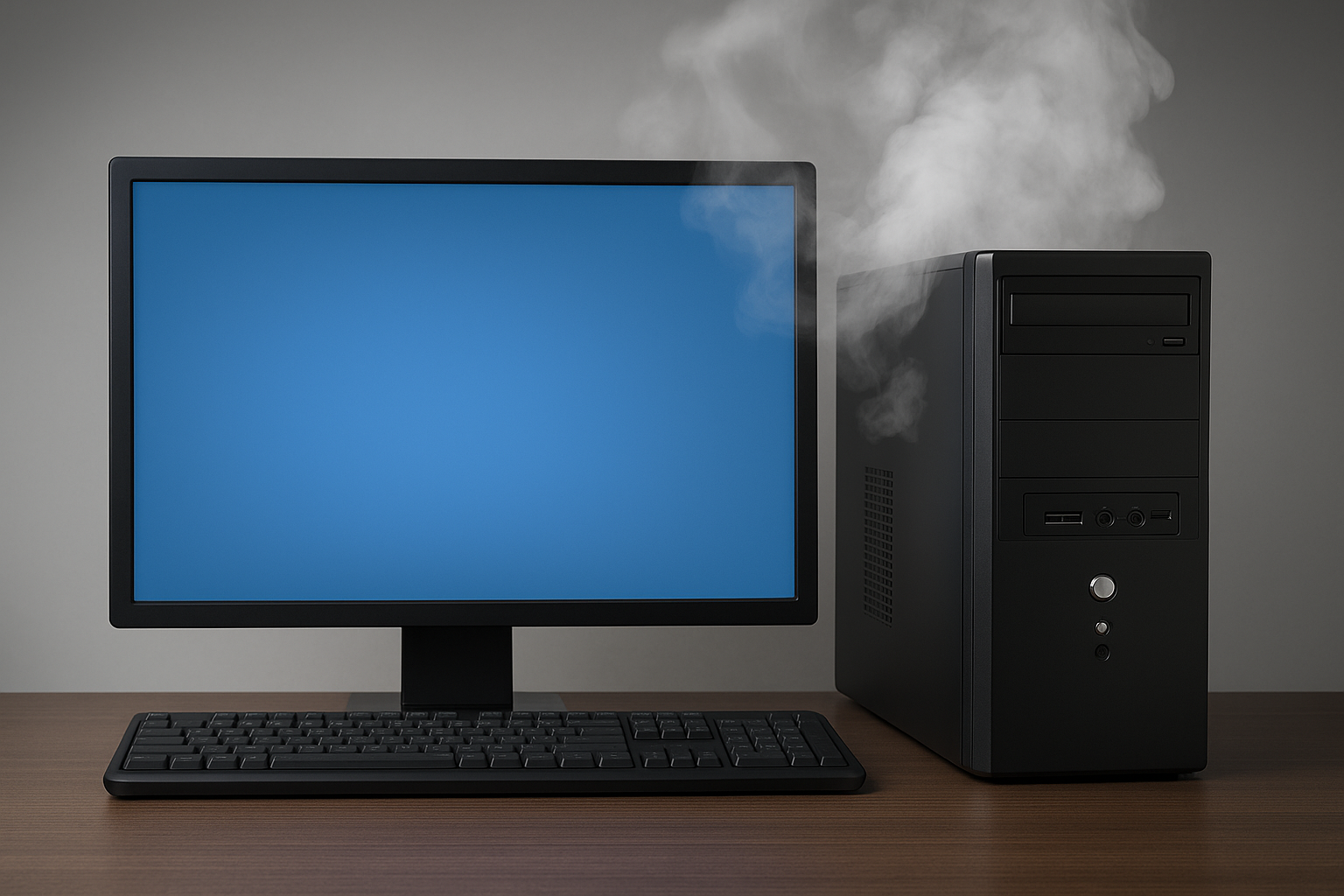
A slow computer doesn’t always need replacing. Modern processors are already strong enough to handle most everyday tasks, the real slowdown usually comes from memory limits, older hard drives, or too much bloatware.
Why spend hundreds on a new computer that will only feel “fast” for a few weeks (especially if you’re buying whatever’s on sale) when you can make your current machine faster for far less money and enjoy it for years to come?
Many computers can be transformed by adding a solid-state drive, often boosting speed 5× to 10×, and these drives start at around $30. Combine that with a simple tune-up and you can easily extend your computer’s useful life by 4–5 years.
Plus, holding off on buying new reduces e-waste and makes your eventual purchase count when you actually want a new feature or technology.
1. Restart your PC
Restarting clears memory, resets background processes, and can fix “stuck” files or services. It’s like taking a really good nap; it is minimal effort, but refreshing.
I’ve had service calls where a simple restart solved the problem completely. If your PC hasn’t been restarted in days (or weeks), it’s worth doing before anything else.
Microsoft guide
2. Clean internet files (cache & cookies)
Since most of our computer time is spent inside a web browser, such as checking email, streaming, or scrolling social media, the browser collects a lot of junk over time.
Clearing your cache and cookies can make pages load faster and reduce strange website glitches.
The only catch? You’ll need to log back into sites afterward, but if you use a password manager like Bitwarden, it’s painless.
How to clear cache
3. Remove unused programs
Old antivirus trials, manufacturer “bonus” software, and expired tools often linger long after you stop using them.
Even if you never open these programs, some still run in the background, eating up CPU, RAM, and storage space. Removing them frees resources that make everything else faster.
I recommend using Microsoft’s built-in antivirus and uninstalling anything you don’t need.
Uninstall apps
4. Disable unnecessary startup apps
Startup apps are programs that begin running as soon as your computer turns on, whether you want them to or not.
Disabling non-essential ones means your PC boots faster and has more resources available while you work.
I’ve seen cases where this cuts boot times in half. Common culprits include Teams, Zoom, cloud storage tools (if you don’t use them), and third-party printer software.
Manage startup apps
5. Consider a RAM upgrade (advanced)
If your PC only slows down when you’re working with many tabs or apps open, RAM could be the bottleneck.
Think of RAM as desk space: the more you have, the more you can spread out without things piling on top of each other.
A RAM upgrade can often be done for as little as $50, which is far cheaper than buying a new computer, and makes multitasking smoother.
Check your manufacturer’s manual to see the type and maximum amount your system supports.
PC Tune-Up — $69.99
Don’t want to DIY? We’ll handle cleanup, software removal, optimization, startup management, and a performance check. Optional light dust cleaning for desktops.
Serving San Antonio & surrounding areas.
Call/Text: (210) 642-9313 • Website: www.TravelingTechPro.com
Need help picking RAM or checking compatibility?
Drop a comment or message us, and we’ll point you in the right direction.